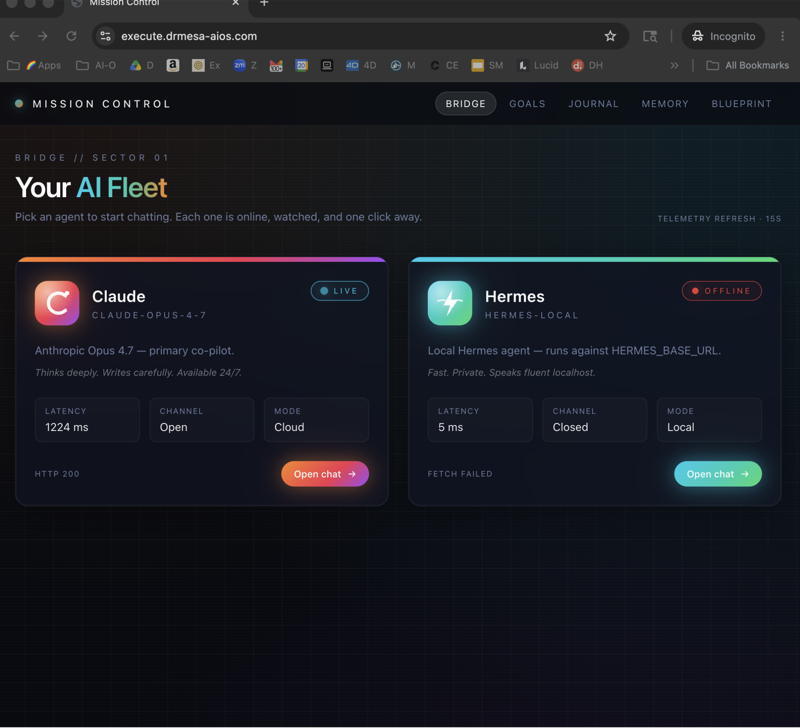
The Hermes computer use skill is the bundled Hermes Agent skill that teaches the agent how to drive your desktop through the built-in computer_use tool, clicking, typing, scrolling and dragging in the background.
Here's the honest answer to the question in the keyword, because it trips people up.
Computer use in Hermes is a tool first, and the skill sits on top of it.
The computer_use toolset is what actually clicks and types, and the Computer Use skill is the instruction sheet that tells the model how to use that tool well.
Hermes Agent is the free, open-source agent from Nous Research, and both pieces ship with it.
This walkthrough turns it on in five steps, using Nous's official docs.
My video below covers the newest computer-use update, where Cua Spaces let the agent's screen move onto a throwaway computer.
That video is a news walkthrough with Cua's own demo footage, so I'm not claiming I've run the new Spaces setup myself.
The Hermes Computer Use Skill Setup At A Glance
This is the whole setup on one screen, and each step has its own section below.
| Step | What you do | The command or setting |
|---|---|---|
| 1 | You check that the driver is installed. | hermes computer-use status |
| 2 | You grant the permissions your platform needs. | On macOS you run hermes computer-use permissions grant. |
| 3 | You enable the Computer Use toolset. | hermes tools and pick Computer Use, or hermes -t computer_use chat. |
| 4 | You run a first task the skill's way. | Capture, click by element number, then verify. |
| 5 | You pick how much freedom the agent gets. | computer_use.permission_mode set to standard or bounded. |
| Extra | You give a headless Linux bot its own screen. | hermes computer-use screen start for Bot Screen. |
| Extra | You move the screen onto a throwaway computer. | The cua-spaces plugin with a Linux Cua Space. |
Skill Or Tool? The Honest Answer
Most people search "Hermes computer use skill" because they expect one thing to install.
There are actually two layers, and you need both.
| Layer | What it is | Where it lives | What it does |
|---|---|---|---|
| The tool | The built-in computer_use toolset. |
It is part of Hermes and runs cua-driver under the hood. |
It takes screenshots, clicks, types, scrolls and drags. |
| The skill | The bundled Computer Use skill, version 2.1.0. | It sits at skills/autonomous-ai-agents/computer-use. |
It teaches the model the actions, the workflow and the safety rules. |
| The optional pack | Cua's own cua-driver skill pack. | You add it with cua-driver skills install. |
It adds platform deep dives for macOS, Windows and Linux. |
The skill page lists its authors as Francesco Bonacci (f-trycua) and Hermes Agent, under the MIT licence, for macOS, Windows and Linux.
That's a nice detail, because Francesco Bonacci is the founder and CTO of Cua, the company behind cua-driver.
Nous's docs say the toolset speaks MCP over stdio to cua-driver, an open-source background computer-use driver from the trycua/cua project.
The practical point is simple.
If the tool is off, the skill has nothing to drive, so turning computer use on is really about enabling the toolset.
🔥 Want my exact Hermes Computer Use Skill setup, step by step? Inside the AI Profit Boardroom you get step-by-step video trainings, my installable Agent OS and four coaching calls a week with 3,400+ members building real automations. → Join the AI Profit Boardroom
What Computer Use Does In Hermes
Hermes can drive your desktop in the background on macOS, Windows and Linux.
Your cursor doesn't move, your keyboard focus doesn't change and your virtual desktops don't switch on you.
The docs describe it as you and the agent co-working on the same machine.
It works with any tool-capable model, so there's no special Anthropic-only schema to worry about.
Under the hood, each platform uses its own accessibility and input stack, which this table from the docs sums up.
| Platform | Accessibility tree | Input dispatch |
|---|---|---|
| macOS | It uses AX through private SkyLight SPIs. | It posts pid-scoped events with no cursor warp. |
| Windows | It uses UIAutomation. | It uses SendInput and PostMessage with no focus steal. |
| Linux | It uses AT-SPI on X11 and Wayland. | It uses XTest on X11 and a virtual keyboard on Wayland. |
Step 1: Check The Driver Is Installed
The docs say the driver ships with Hermes.
cua-driver is pinned and installed by default by the installers, a bare hermes pm install and hermes update on macOS, Windows and glibc Linux.
Check it with this command.
hermes computer-use status
If the download failed or you opted out earlier, these two routes install it.
hermes computer-use install
You can also run hermes tools and pick Computer Use, which installs the driver automatically if it's missing.
In the dashboard or desktop app, toggling the Computer Use toolset starts the install in the background.
Step 2: Grant The Platform Permissions
Each platform needs something slightly different, and this is the docs' list.
| Platform | What you grant |
|---|---|
| macOS | You grant Accessibility and Screen Recording to CuaDriver in System Settings. |
| Windows | You grant nothing at install time, unless you drive the machine over SSH. |
| Linux | You need a reachable display server and AT-SPI switched on. |
On macOS, these two commands check and request the grants.
hermes computer-use permissions status
hermes computer-use permissions grant
The identity to grant is the one hermes computer-use doctor names, which is CuaDriver with the bundle id com.trycua.driver.
Step 3: Enable The Computer Use Toolset
Start a session with the toolset switched on.
hermes -t computer_use chat
Or add computer_use to your enabled toolsets in ~/.hermes/config.yaml so it's always available.
Since v0.22.0, the release notes say rare tools such as computer_use sit behind tool_search by default and load on demand, which keeps your prompt smaller.
The bundled skill is installed by default, so you don't need a separate skill install for the Hermes side.
🔥 Want my Hermes setups done with you, step by step? Inside the AI Profit Boardroom, I've got a full Hermes Agent course plus the Agent OS, with walkthroughs on toolsets, skills and profiles. You'll be learning alongside 3,400+ members with four coaching calls every week. → Get access here
Step 4: Run Your First Task The Skill's Way
The skill teaches the model a three-step habit, and it's worth knowing so you can read what the agent is doing.
First, it captures the app with numbered elements.
computer_use(action="capture", mode="som", app="Mail")
Second, it clicks by element number rather than by pixel position.
computer_use(action="click", element=7)
Third, it re-captures to check the click worked, or asks for the capture inline with capture_after=True.
The docs give a full example prompt you can try.
"Find my latest email from Stripe and summarise what they want me to do."
The agent captures Mail, clicks the search field, types from:stripe, presses return, opens the top result and summarises it.
Your cursor stays wherever you left it, and the email app never comes to the front.
The three capture modes
| Mode | What it returns | Best for |
|---|---|---|
som |
It returns a screenshot plus a numbered element list. | It suits vision models and is the default. |
vision |
It returns a plain screenshot. | It suits clicking by coordinates. |
ax |
It returns the element list with no image. | It suits text-only models. |
When a click doesn't land
The skill tells the model to climb a ladder rather than retry blindly.
It starts with an element click in the background, then re-checks, then tries a pixel click, then repeats the action in the foreground with its own approval.
The skill is firm that foreground mode is a reaction to a signal from the driver, never a guess.
Ask for a real screenshot
On Telegram, Discord, Desktop and other attachment-capable surfaces, you can ask "Send me a screenshot of my screen" and get the real image.
On the CLI, the agent gives you the saved file's path instead, and only the 20 most recent captures are kept.
🚀 Ready to put Hermes Computer Use Skill to work in your business? Inside the AI Profit Boardroom you get step-by-step video trainings, my installable Agent OS and four coaching calls a week with 3,400+ members building real automations. → Join the AI Profit Boardroom
Step 5: Pick How Much Freedom The Agent Gets
This is the setting I'd think hardest about.
| Hermes session | Driver mode | What you approve |
|---|---|---|
| Manual or smart approvals, the default | standard |
You get the normal Hermes approvals. |
computer_use.permission_mode: bounded with a reviewed manifest |
A private bounded daemon |
You approve a capability manifest once, at launch. |
--yolo, /yolo or approvals.mode: off |
A private unrestricted daemon |
You accept the risk once, with no runtime prompts. |
Bounded mode suits recurring jobs, and you set it like this.
computer_use:
  permission_mode: bounded
  capability_manifest: ~/.hermes/cua-manifest.yaml
Anything outside the manifest fails closed inside the driver, and a missing manifest fails loudly at session start.
The docs warn that unrestricted mode doesn't protect against prompt injection, so use it only in a disposable VM or with accounts you'd accept losing.
The safety rails you get anyway
- Clicks, typing, drags, scrolls, keys and app focus go through the same approval gate as dangerous shell commands.
- Empty trash, force delete, lock screen and log out are hard-blocked key combos.
- Typed text that matches patterns such as
curl | bashorsudo rm -rf /is blocked. - Where nobody can answer, such as cron or a headless run, actions are refused rather than auto-approved.
Give A Headless Linux Bot Its Own Screen
On a server with no monitor, computer use needs a display, and that's what Bot Screen is for.
Bot Screen arrived in v0.22.0, and the CLI help calls the same feature Bot Desktop.
Each bot gets its own Xfce desktop over TigerVNC, streamed live into Hermes Desktop.
You click Take over when the bot hits a login, 2FA or CAPTCHA, do the step yourself, then click Hand back.
It's off by default, and you start it from the Screen pane or with this command.
hermes computer-use screen start
The docs plan on about 1.1 to 1.5 GB of memory per open screen with a browser, because the browser is the expensive part.
With a Docker, SSH or Singularity backend, the screen runs inside the sandbox, and Modal, Daytona and Vercel sandboxes refuse because they can't host a display yet.
If you want the bot side explained first, read my Hermes Agent bot mode guide.
Make It Safer With A Cua Space
This is the newest piece, and it's what my video at the top is about.
Cua's cua-spaces plugin moves Hermes's terminal into a Cua Space, which is an isolated machine you can watch live.
The plugin catalog says that on Hermes 0.22.3 and later, Bot Desktop, computer_use and the browser follow the terminal into the Space.
That only works in Linux Spaces, with the cua command on your PATH and the desktop stack installed in the Space.
The result is that the agent clicks around on a throwaway computer instead of your own desktop.
I've written the full setup in my Hermes Cua guide, and the wider sandbox options are in my Hermes Agent sandbox setup.
Common Problems And Fixes
The docs say your first stop is always the doctor command.
hermes computer-use doctor
It prints a check matrix, and it exits with 0 when everything is fine, 1 when something is degraded and 2 when the driver can't be reached.
- If you see "cua-driver is not installed", run
hermes computer-use installor enable the toolset inhermes tools. - If clicks seem to do nothing, re-capture, because a hidden modal may be blocking input.
- If element numbers are stale, re-capture, because numbers only last until the next capture.
- If captures are empty on Linux, check that
DISPLAYis set or that you have an XWayland bridge. - If macOS shows the grants as on but doctor disagrees, reset them with
tccutiland runhermes computer-use permissions grantagain.
Limits To Know Before You Rely On It
- Background mode is a little slower than direct input, at roughly 3 to 20 milliseconds per event depending on the platform.
- The agent won't type passwords, so use your system's password autofill instead.
- Some apps expose a sparse accessibility tree, so the agent falls back to pixel clicks.
- A normal Windows agent can't drive elevated admin windows.
- Web page content is a separate job for the
browsertools, and the skill says to use those for pages.
On the token side, the docs say a 20-action session on a 1568×900 display typically costs about 30,000 tokens of screenshot context rather than about 600,000.
If you'd like help working out where desktop agents fit your SEO business, you can book a free SEO strategy session with my team.
🔥 Want help deciding which Hermes tools to switch on first? The AI Profit Boardroom has Hermes Agent training, the Agent OS and four weekly coaching calls where you can ask me about your own setup. → Join the AI Profit Boardroom
Related Reading
- The Hermes Cua setup, with throwaway computers
- Hermes Agent bot mode, explained
- The Hermes Agent sandbox setup, backend by backend
Also On Our Network
- 🌐 Seven business jobs the Hermes computer use skill can take on
- 🌐 The Hermes computer use skill, feature by feature with scores
- 🌐 The Hermes computer use skill quick start for an Agent OS
- 🌐 Skill or tool, and which models drive it best on GoldieBench
FAQ: Hermes Computer Use Skill
Is Hermes computer use a skill or a tool?
It's both, in two layers.
The computer_use toolset does the clicking, and the bundled Computer Use skill teaches the model how to use it.
How do I turn on the Hermes computer use skill?
Check the driver with hermes computer-use status, grant any permissions, then run hermes -t computer_use chat or enable it in hermes tools.
Do I need to install cua-driver separately?
Usually not, because it's installed by default with Hermes.
If it's missing, run hermes computer-use install.
Which models work with the Hermes computer use skill?
The docs say any tool-capable model works, and they rate Claude best overall.
Text-only models work in a degraded mode that reads the accessibility tree.
Can Hermes computer use run on a headless Linux server?
Yes, with Bot Screen, which gives each bot its own streamed desktop.
It's off by default and needs a few host packages.
If you run an agency and want help mapping agents to your client work, you can book a free strategy session and we'll talk it through.
📺 Video notes + links to the tools 👉
🎥 Learn how I make these videos 👉
🆓 Get a FREE AI Course + Community + 1,000 AI Agents 👉
About Julian
I'm Julian Goldie, an SEO entrepreneur, author and founder of the AI Profit Boardroom, which has 3,400+ members.
I help business owners scale with AI agents, automation and SEO.
- I've built a 7-figure SEO and link-building agency, Goldie Agency, with 70+ people in Bangkok.
- I've grown a YouTube channel to 400,000+ subscribers.
- I wrote the book "Link Building Mastery", which covers nine link building strategies.
- I run GoldieBench, where I score AI models on real one-shot builds.
→ Get my best AI training inside the AI Profit Boardroom
Switch on the toolset, let the bundled skill guide the model and keep the agent in a safe mode, and you've got the Hermes computer use skill working properly.